
The moment an Android phone refuses to start, everyday tasks suddenly stop. This situation creates stress because the device keeps looping on the startup screen. Many users feel stuck, unsure how to address and resolve such a phone issue. Nonetheless, you can restore your device by selecting an Android repair tool and following a few easy steps. So, this guide explains clear methods to fix boot problems without confusion.
Part 1. What Is Boot Loop on Android?
A boot loop is basically a condition in which the phone restarts again and again. It is an attempt by the system to boot, but it neither always succeeds nor reaches the home screen. This problem usually comes from corrupted software or even faulty updates. Moreover, many users face it after flashing or installing new apps. Therefore, using the right approach, like an Android repair tool, can help you fix Android system problems.

Why Android Devices Get Stuck on Boot or Startup
The following are a few common reasons behind this boot loop issue on your phone:
- App Conflict: Some apps may clash, making the Android system freeze during boot.
- Corrupted Files: Damaged system or user files can prevent your phone from loading fully.
- Battery Issues: On most occasions, faulty or weak batteries do not allow the device to boot.
- Custom ROM: Installation of unofficial software can also lead to instability of the system.
- Software Update: Improper updates also cause the device to fail to start.
Part 2. Dr.Fone – The Most Effective Tool for Android Boot Issues
Dr.Fone – System Repair (Android) is a professional solution built to fix the boot problem. This Android repair tool supports all major Android versions, including Android 16, to ensure broad compatibility. It can even fix the black screen of death, restoring devices that appear unresponsive. Moreover, Dr.Fone resolves endless boot loops, allowing the phone to start normally again.
Furthermore, it repairs multiple devices stuck on logos, such as Samsung, Xiaomi, Redmi, and POCO. You can start repairing by selecting the device brand and confirming basic details effortlessly. Plus, it automatically downloads and verifies the correct firmware package for the selected device model. For Samsung phones, it repairs the boot loop while erasing all the stored data. Therefore, you should first back up your phone’s data via Dr.Fone Basic.
Key Benefits
- Safe Process: Ensures the repair runs securely without affecting important stored data.
- Smooth Recovery: Restores phone performance and stability after repair completes.
- High Success: Offers 99% success rate for repairing most Android issues.
Detailed Guide to Fix Android Boot Issues via Dr.Fone – System Repair (Android)
Review the following guide to learn how you can resolve the boot loop issue on your smartphone:
Step 1. Access the Android System Repair Tool
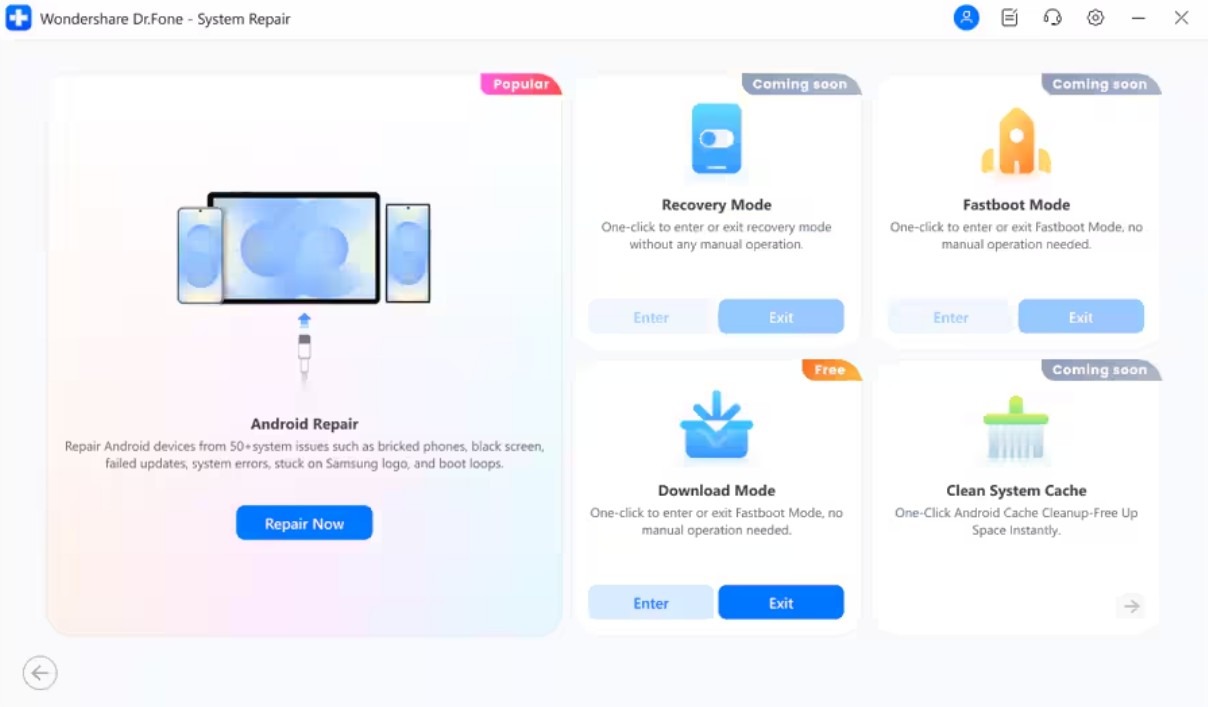
Open the “Toolbox” section and choose “System Repair” before selecting “Android” as your device option. Press the “Repair Now” button under “Android Repair” and establish a connection between your devices.
Step 2. Confirm Your Android’s Information
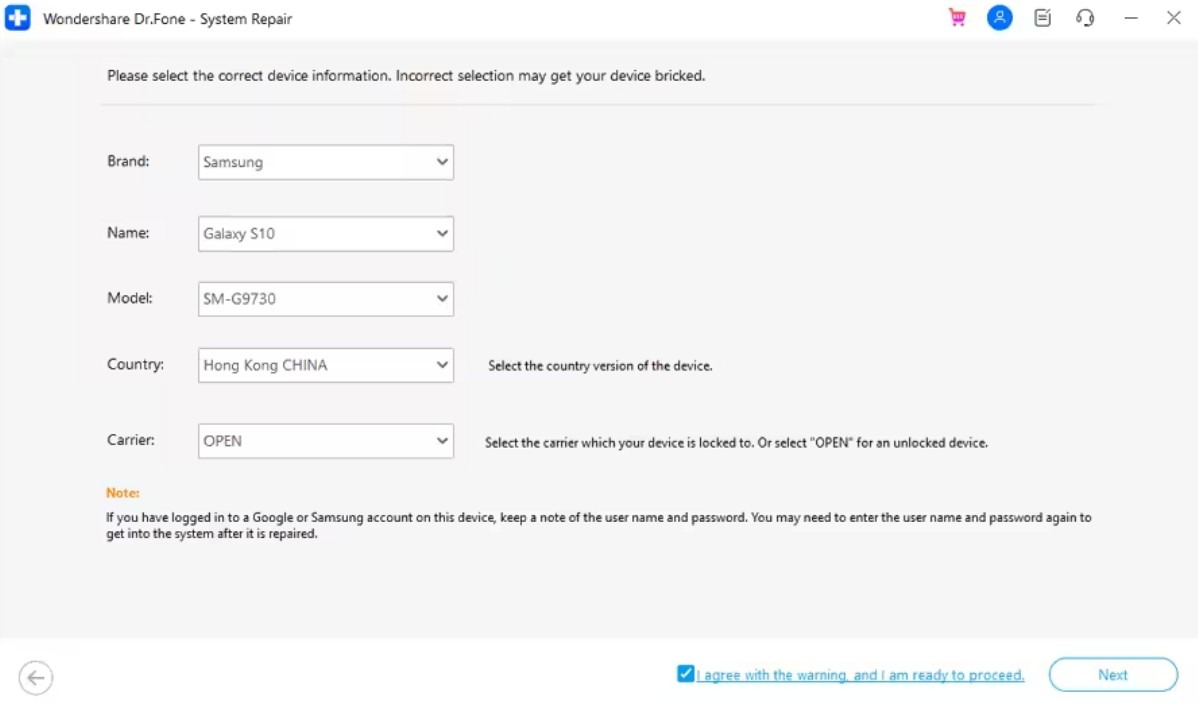
Afterward, choose your device brand to repair the “Boot Loop” issue and press the “Start” button. Provide your device details correctly and continue by tapping the Next button. Place your phone into “Download Mode,” and the required firmware will initiate downloading.
Step 3. Fix the Boot Issue on Your Phone
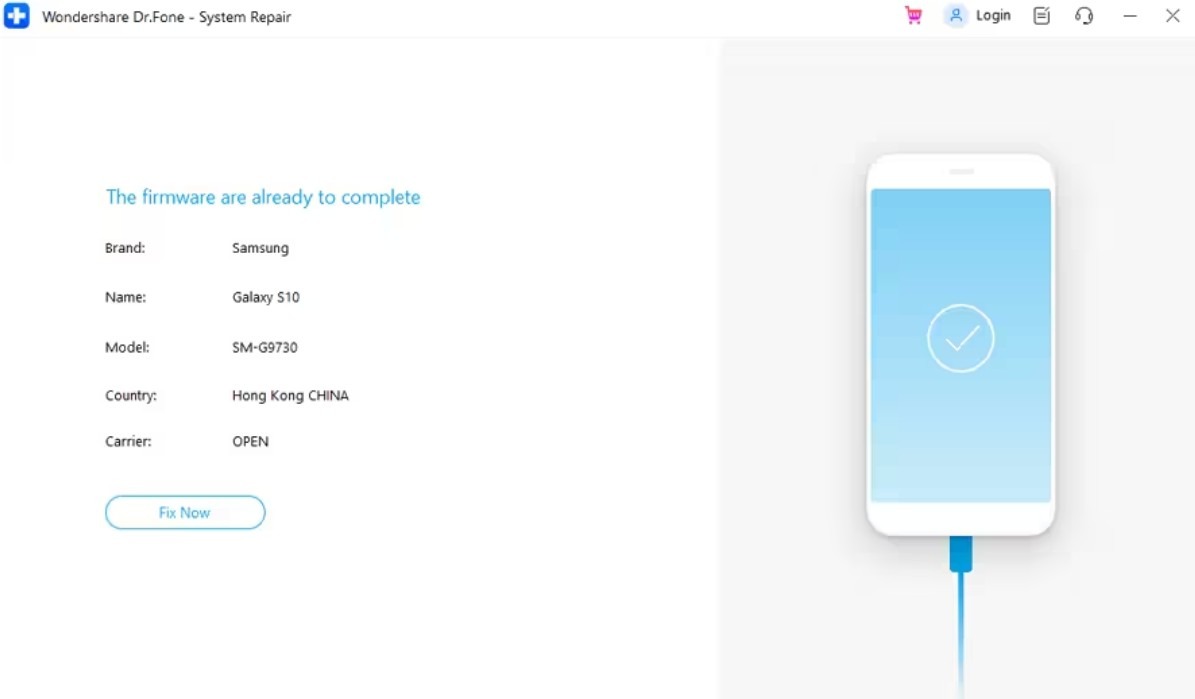
After preparation completes, click “Fix Now” and type “000000” to authorize the repair. Later, hit “Continue” in the prompt shown, allowing the software to resolve the boot issue.
Use Cases of Dr.Fone – System Repair (Android)
- Bricked Device: It recovers phones that have become unusable after failed flashing.
- Black Screen: The tool fixes devices showing a blank display that refuses to respond.
- Update Error: Dr.Fone even solves problems caused by failed system updates, blocking the device startup.
- App Crash: You can fix apps from closing suddenly and restore usage again.
- Play Error: Repairs Play Store malfunction, allowing app downloading and updating again.
Part 3. Other Ways to Fix Android Boot Loops and Startup Failures
Many times, you may face boot loop issues that need manual solutions besides tools. Thus, this part provides 5 ways to fix Android system errors and make your phone work again:
Way 1: Perform a Soft Reset
This specific solution is a simple yet effective method to fix minor phone issues. It helps refresh the device memory without deleting any data or settings. Besides, this process can stop temporary glitches that cause startup errors or sudden freezing problems. So, go through the given steps to perform a soft reset on your phone:
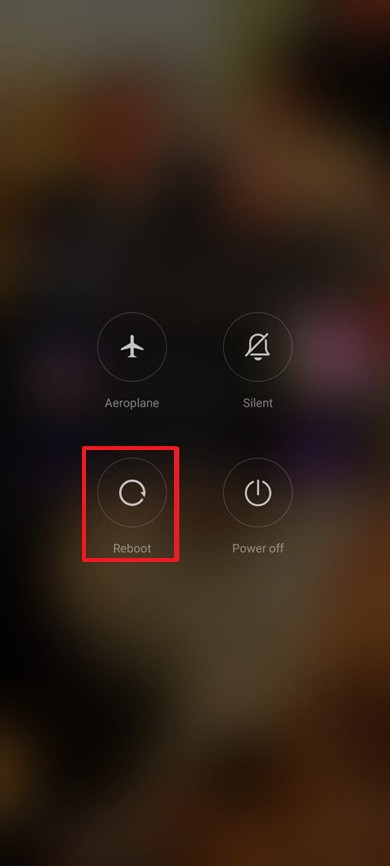
Instruction. Press the “Power” button for a few seconds until you see a new screen. Afterward, tap “Reboot” and let the system soft reset your device.
Way 2: Boot Your Phone in Safe Mode
Safe Mode basically helps your phone start with only essential system tools active. This option is practical when apps cause repeated restarts or startup issues. In this mode, you can uninstall a recently installed problematic app easily. This makes it a safe way to test and fix Android system issues. Thus, follow the steps below to perform this process:
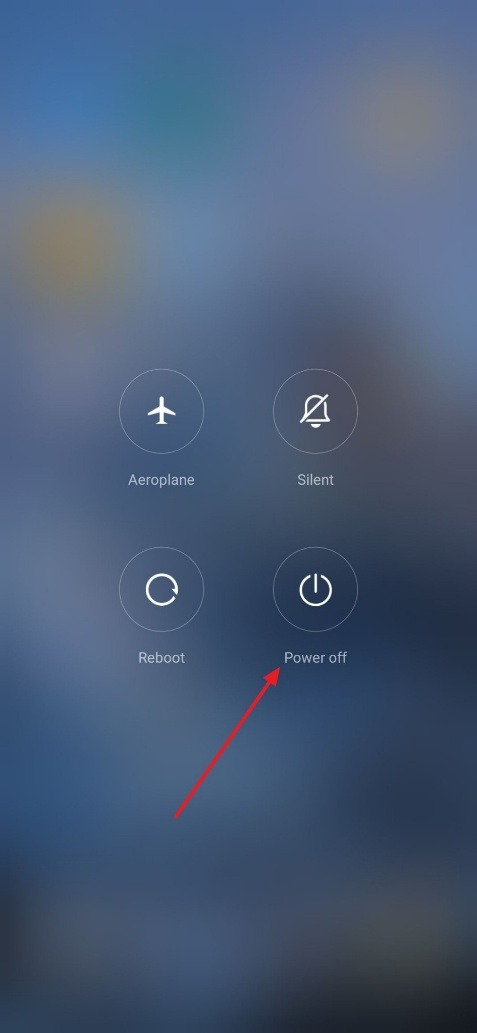
Step 1. Initially, press the “Power” button for a while and tap “Power Off.” Afterward, keep pressing the “Power” key until you see the “Reboot to Safe Mode” prompt.
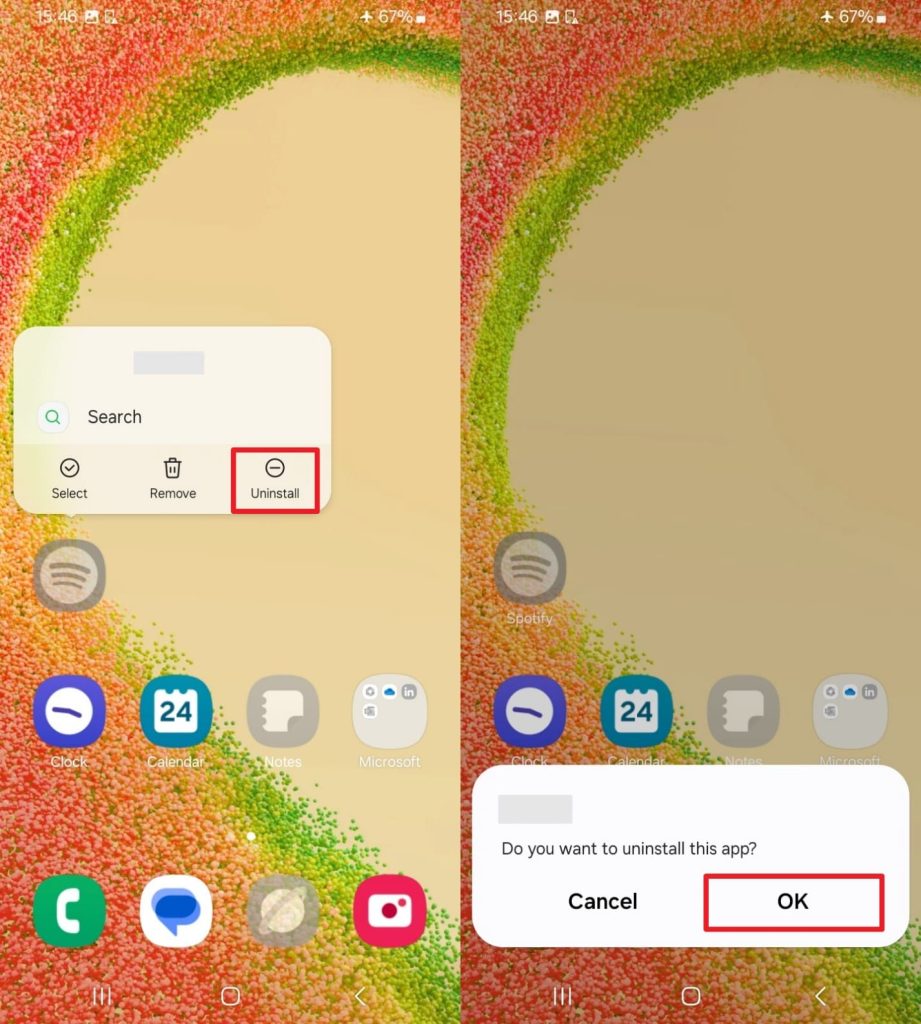
Step 2. Going ahead, press the recently installed app icon to choose “Uninstall” and tap “OK.”
Way 3: Remove and Reattach the Battery to Fix Boot Loop
Removing and reattaching the battery is another simple method for phones with removable backs. This action cuts all power and clears minor errors blocking the startup process. Plus, it helps refresh the device hardware when the system becomes stuck during boot. By disconnecting the battery, the phone releases stored charge that may cause glitches.
Way 4: Remove the SD Card to Fix Boot Loop
Another simple solution is to remove the SD card when corrupt files prevent startup. Many times, the phone reads damaged data from the card, causing repeated boot loops. Taking out the SD card allows the system to load without external interference. Hence, this quick action helps fix Android system errors caused by faulty storage content.
Way 5: Fix Android Boot Loop with Factory Reset
A factory reset restores your phone to its original settings, removing all software issues. This method effectively clears persistent boot loops caused by system errors or corrupted apps. Yet, it is essential to back up Android phone to PC to prevent data loss before initializing. Thus, take guidance from the following guide to factory reset your device:
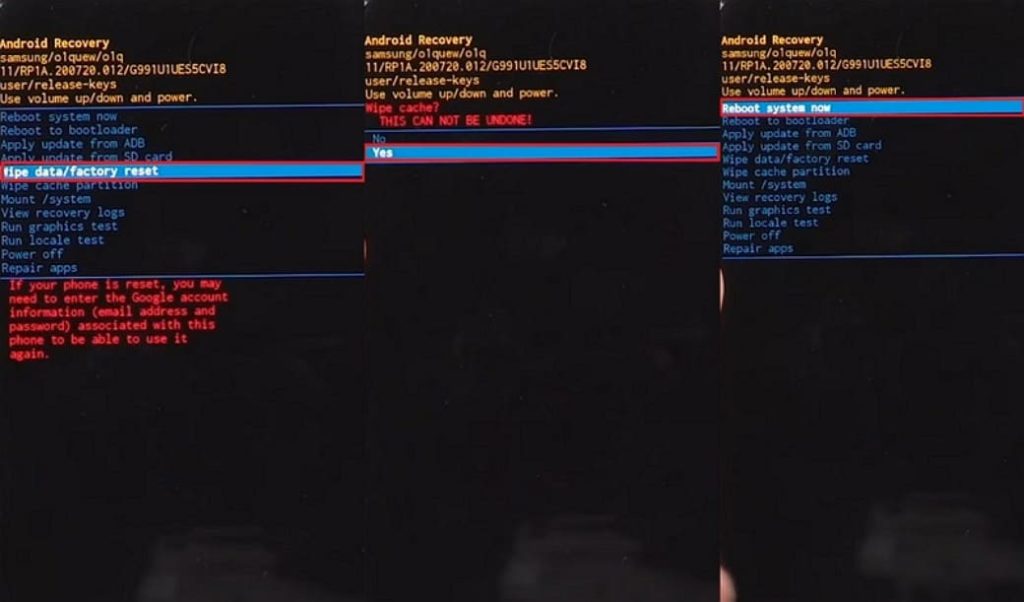
Instruction. As your device powers off, press and hold “Power” and “Volume Up” together until you enter “Recovery Mode.” Navigate with “Volume Down” to “Factory Reset” and confirm by pressing the “Power” key. Next, choose “Yes” and select “Reboot System Now” to complete the process.
Conclusion
In conclusion, Boot loops can frustrate any Android user with endless restarts. This guide explored various simple fixes from soft resets to factory resets. Each method helps identify and solve common startup problems. Yet, for reliable results without data loss, choose Dr.Fone – System Repair (Android) as your trusted Android repair tool.